The Gradebook View Tab - Grader Report View and Single View
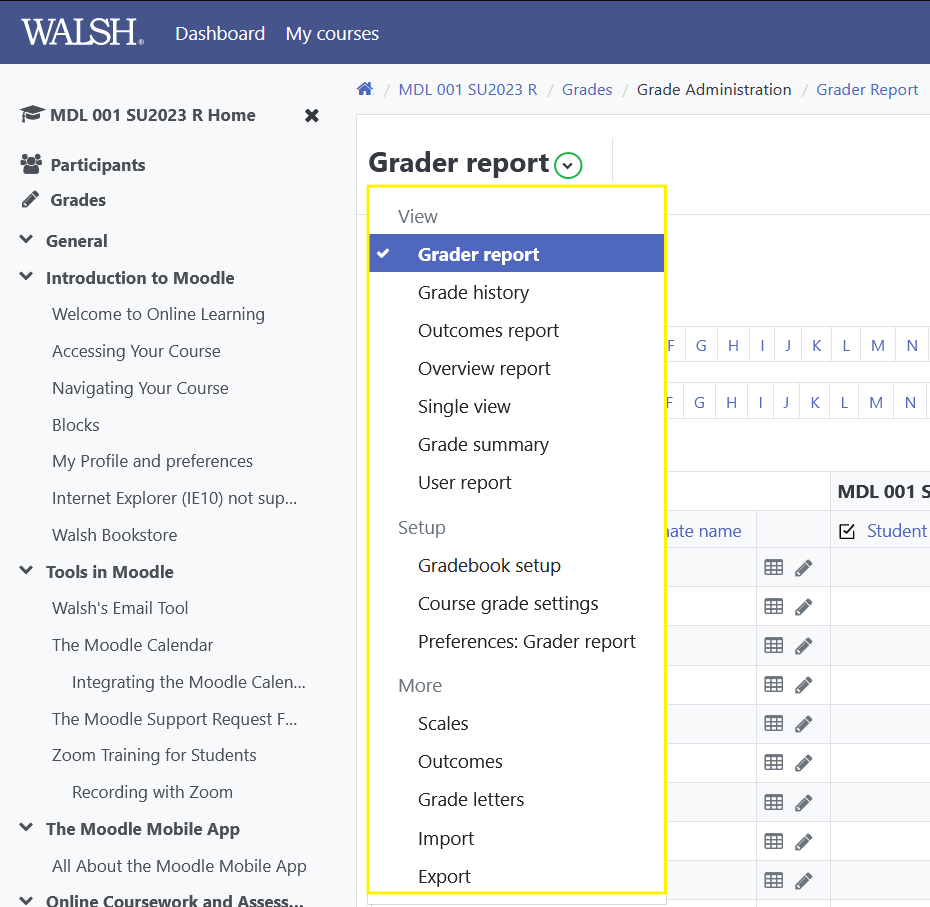
When you enter the gradebook the Grader Report View is Shown. There are several new features in this view that will hopefully allow you to better facilitate your gradebook. Additionally, there's a new view option called Single View, which we'll also go over.
Scrollbars and Scrolling Headers
Prior to Moodle 2.8, the scrollbar was located only at the top and bottom of the student list. If you had a large class roster, this meant you could only move left or right by scrolling all the way to the top or bottom of the list.
Now, the horizontal scrollbar is immediately accessible at the bottom of the browser window (just like a normal browser scrollbar), no matter your location in the roster field.
Additionally, the gradebook now takes up the entire browser window field. This means that you can scroll up and down using your browser's scroll bar.
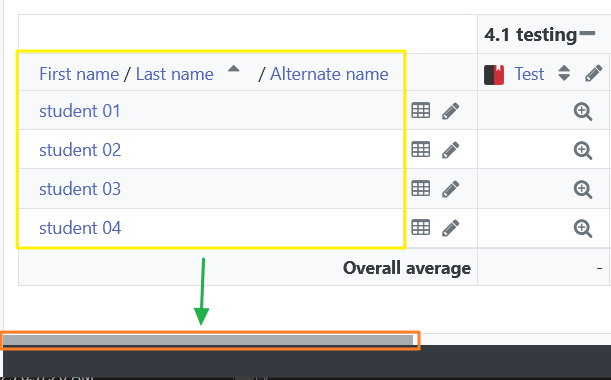
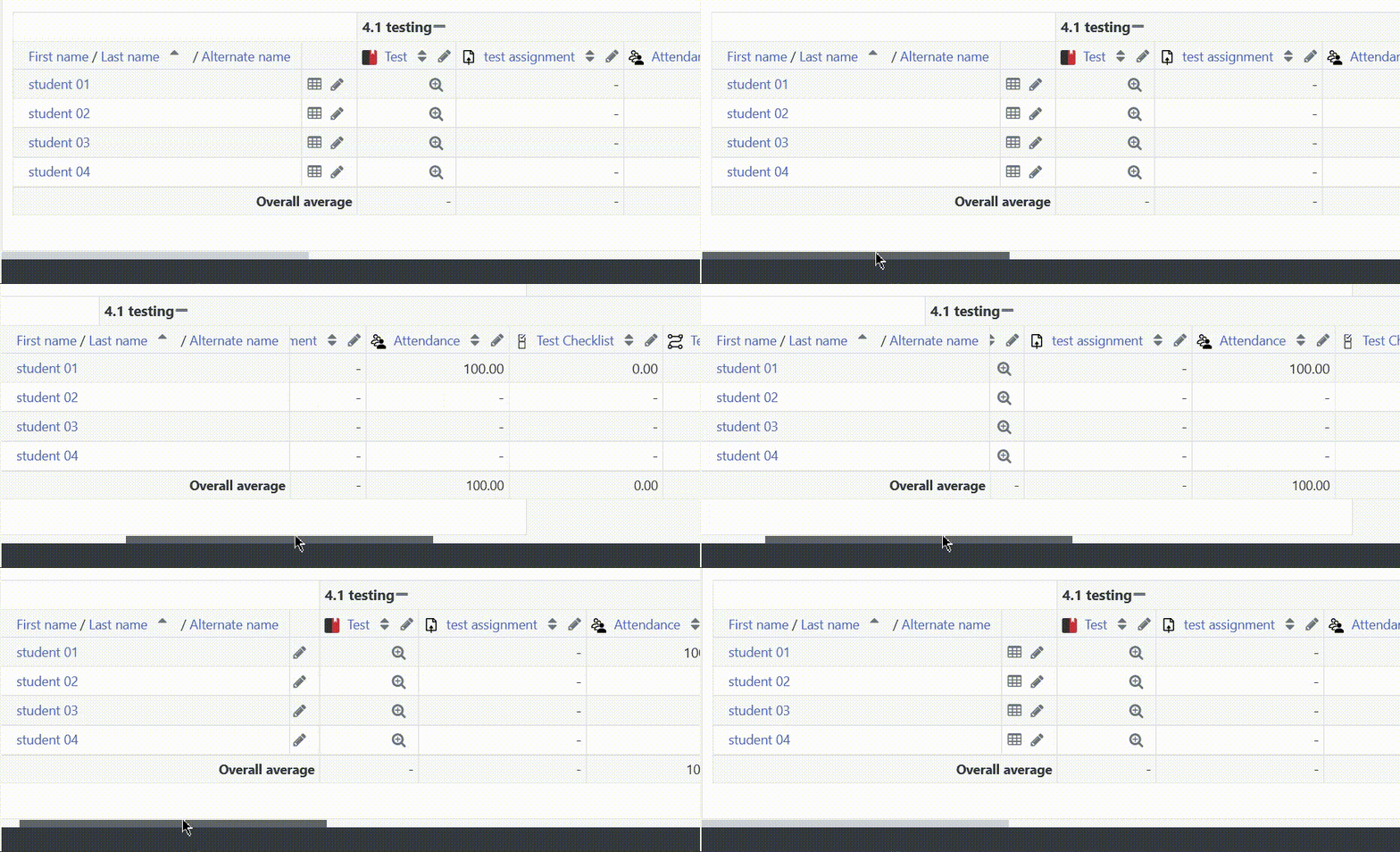
As you scroll left and right, the list of student names "floats" on top of the gradebook, keeping you aware of who's grade you are looking at.
As you scroll up and down, the column headers and footers scroll as well. This means you will always know what column you're looking at, regardless of how many students are on your roster.
Single View
A new feature available to you is the Single View. This allows you to look at, and edit, a single student or a single grade item. You can get to the Single view using the View > Single View tab along the top, or, if you're already in the Grader Report view, you can access the Single view by clicking the Edit pencil (described below).
Single Student View
To view a single student, click the Edit pencil next to their name.

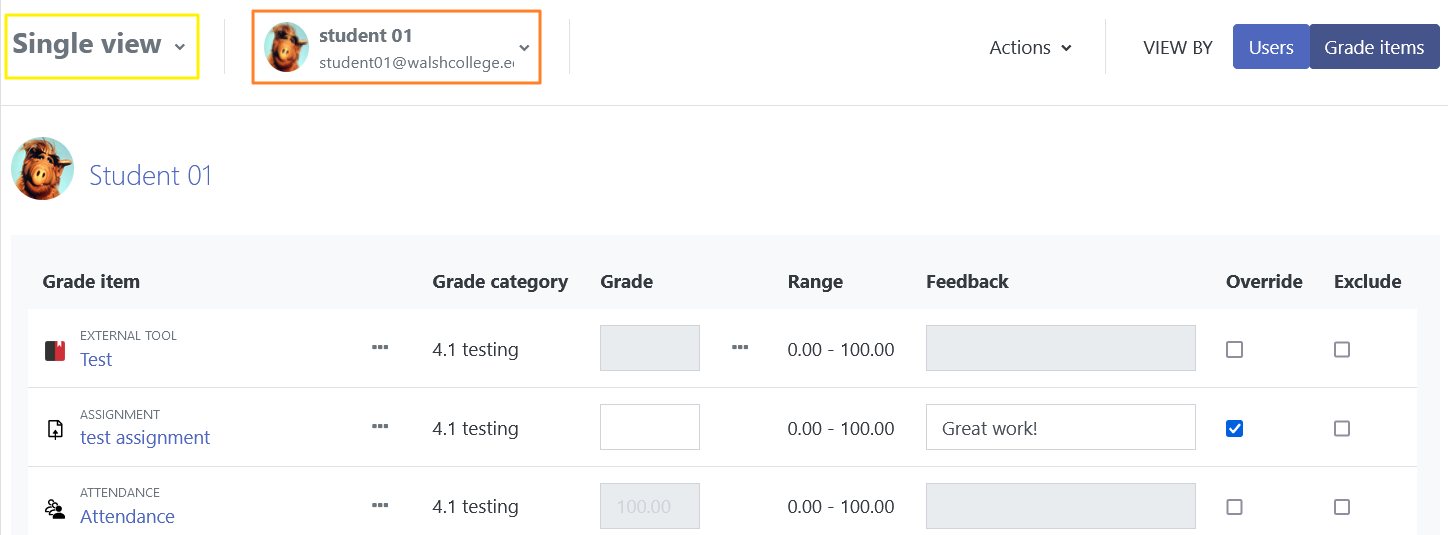
This pulls up a full list of grade items, and the current grades earned or awarded for that particular student. You may:
- quickly move between students,
- adjust a student's grade,
- provide feedback,
- overwrite an existing grade,
- or Exclude an assessable from the student's score - which needs some explaining.
You may encounter a time when a student is excused from having to complete an assessment. For example, perhaps they had a death in the family, or a hospitalization. The "Excludes" allows you to remove a particular item from the student's category total, or course grade total. When applied to a user's activity, the word Excluded will show in that cell for the instructor grades report, and the student grades report. The student's course total amount will be adjusted and the course percentage will be based on the adjusted total.

Single Grade Item View
To view a single grade item, click the Edit pencil found in the column header.
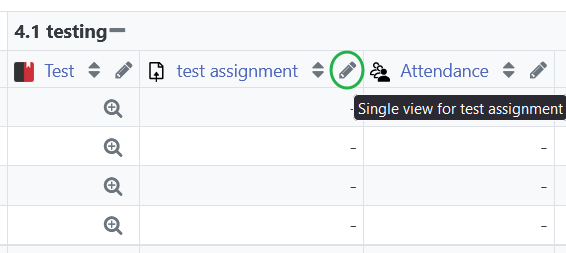
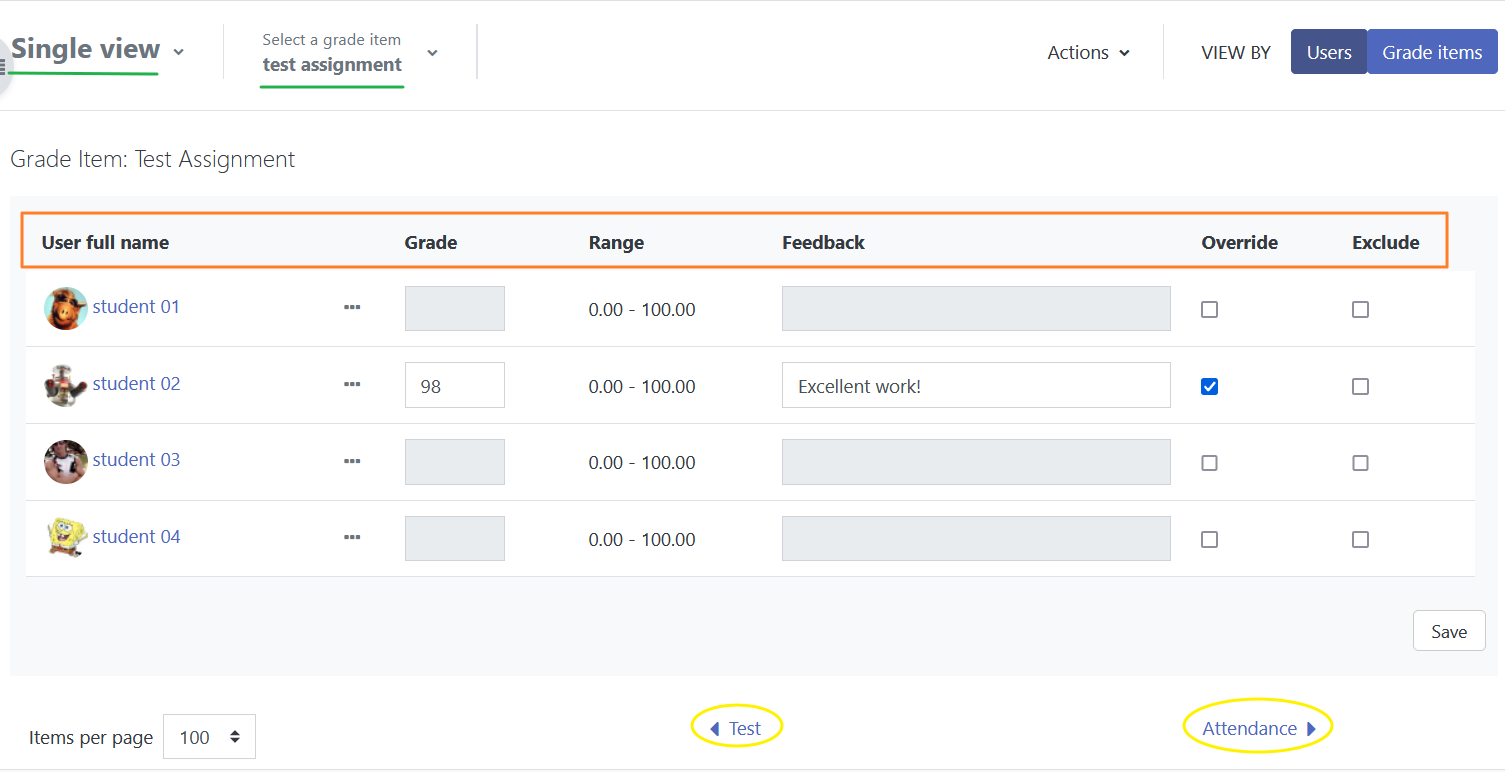
This pulls up the full student roster. Here, you can:
- quickly move between assignments,
- adjust a student's grade,
- provide feedback,
- overwrite an existing grade,
- or Exclude an assessable from the student's score.
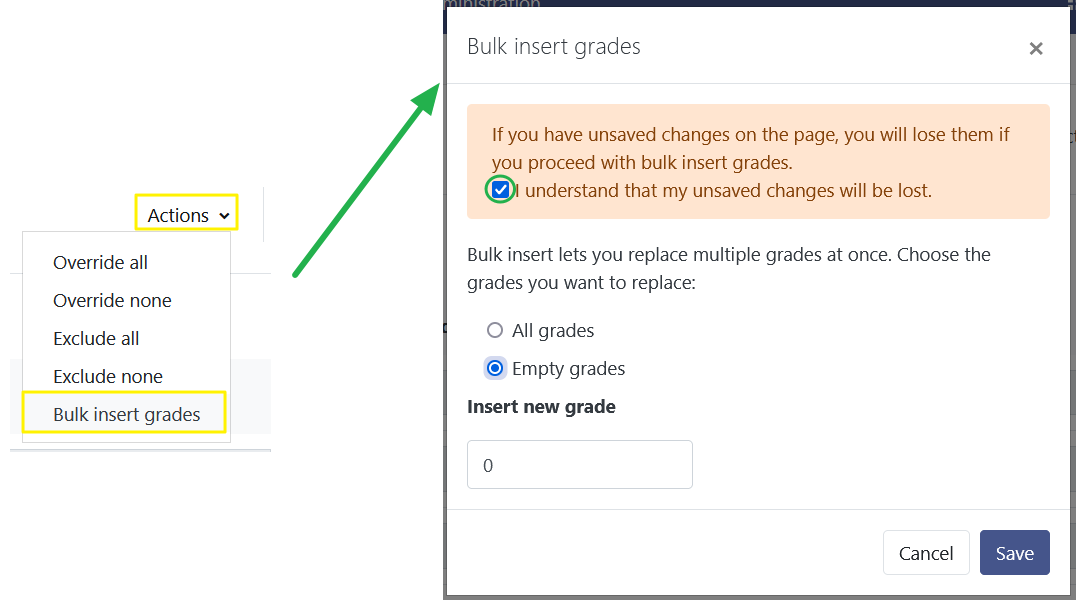
Additionally, you can perform a bulk insert for all empty grades, whether using the Student view, which allows you to grade an individual student's empty grades, or the Grade Item view, which allows you to grade all students with an empty grade for a particular assignment. You may set this value to whatever you choose, but be aware this will be the same score across all empty grades. To enable this insert, click the "Perform bulk insert" box, verify the value (in the image to the left, it's zero), and click "Update." All empty grades are now marked with the value.